

The Client Portal: Overview
What the client portal is, and how to use the Client portal hub to answer what's waiting, spot clients worth a call and set the portal's defaults.
The client portal is a private, branded space for each client. There they see the properties you pick for them, request viewings, make offers, follow their deal, open documents and message you. The Client portal hub brings every client's portal together, so you can see who is waiting on you and who is worth a call today.
Before you start
- You need access to Contacts to open the hub.
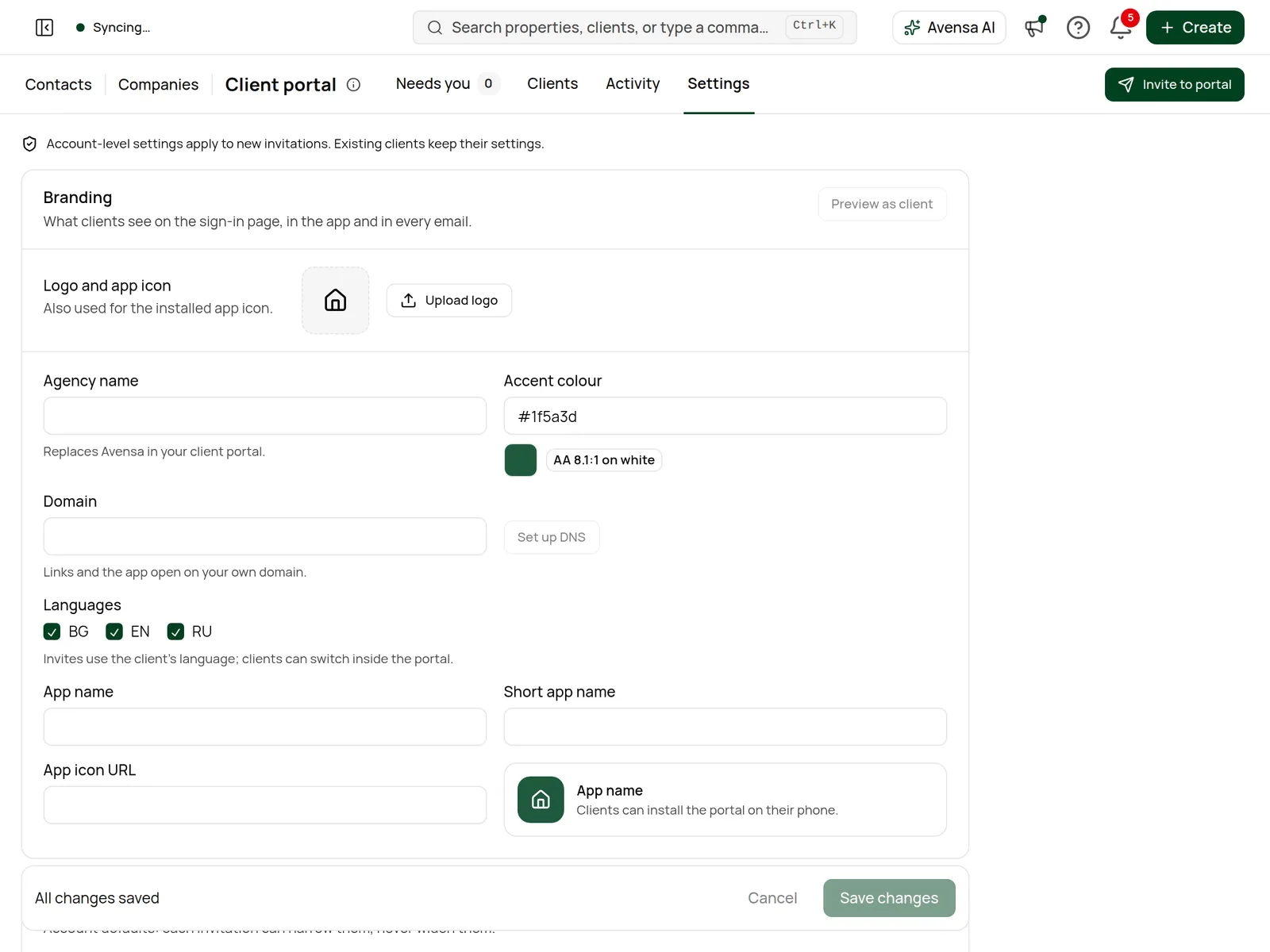
- The Settings tab is shown only to people whose role can manage agency settings or the client portal. Everyone else doesn't see it, nor the Branding settings shortcut on a new hub.
- Which roles can invite clients is set on the Settings tab. By default owners, managers and brokers can.
Tour the Client portal hub
Open the hub
Click Contacts in the sidebar, then Client portal at the top of the page, next to Contacts and Companies.
Open Client portalPick a tab
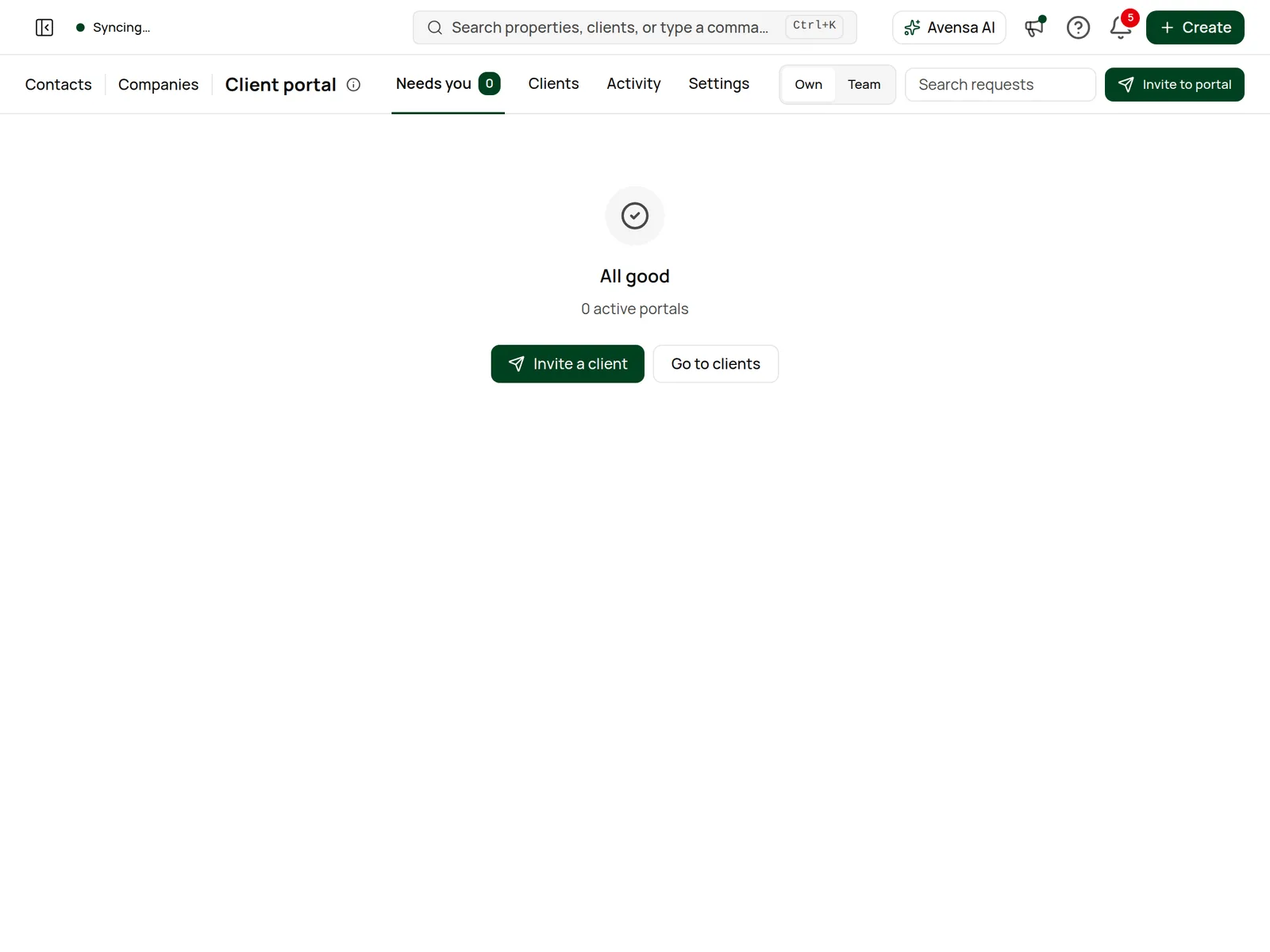
The hub has four tabs: Needs you, Clients, Activity and Settings (if your role can configure the portal). The page refreshes itself every 20 seconds while it's open, so new requests appear without reloading.
Invite or preview
Invite to portal at the top right starts an invitation (see Inviting a client to their portal). While you preview a client's portal, a chip such as "Previewing as Maria · 24m left" appears next to it, with Exit preview.
| Tab | What it's for |
|---|---|
| Needs you | One queue of everything clients are waiting on: messages, viewing requests, offers and website sign-ups. Signals worth a call are listed below it. |
| Clients | Every portal, with Status, Last accessed, Visits, Expires and Access. Row actions let you preview, copy the link, resend the invite, regenerate the link or revoke access. |